
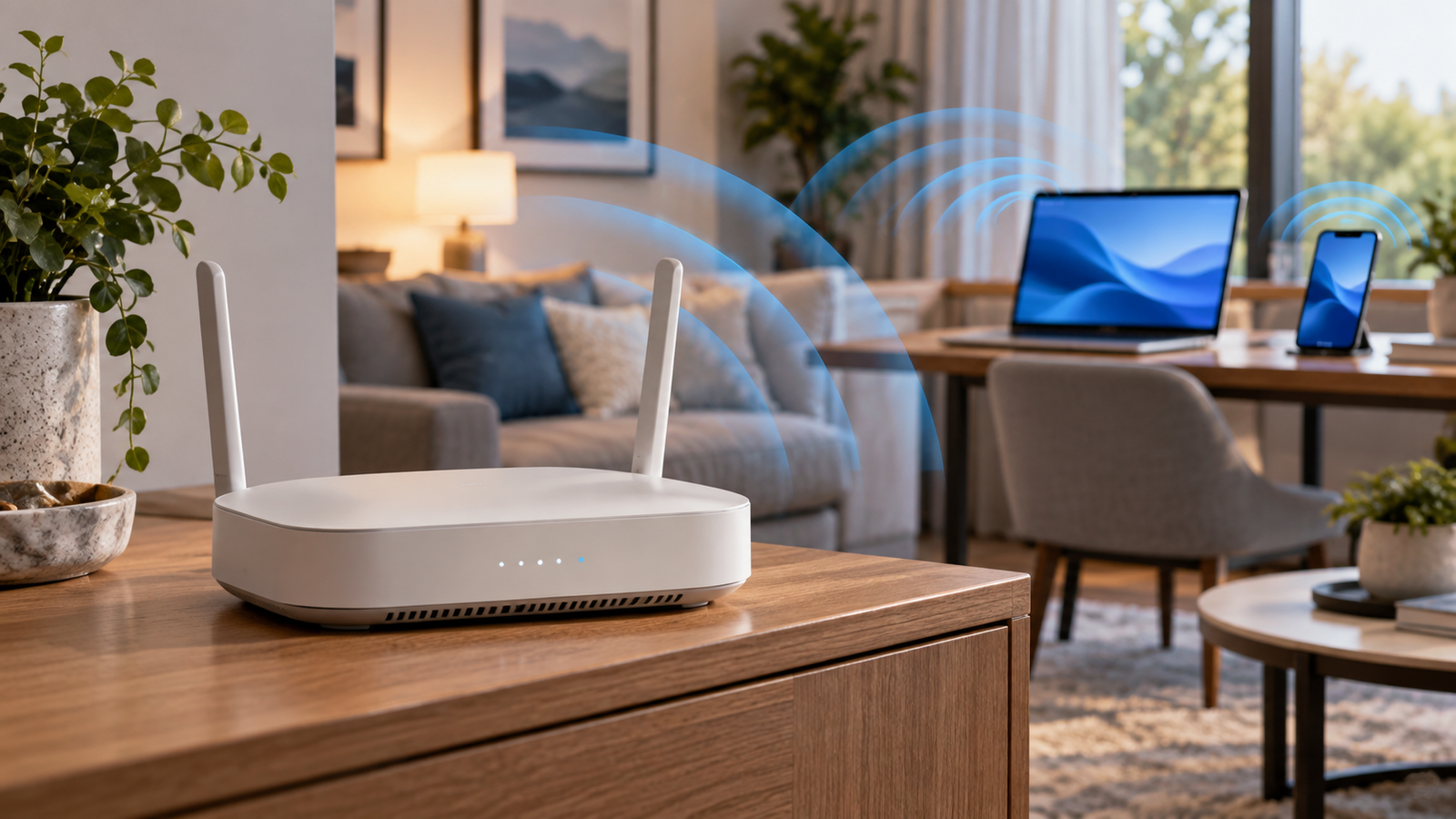
Slow Wi-Fi often leads to one conclusion:
“I need a new router.”
Sometimes you do.
But buying new hardware should be one of the later steps, not the first.
Your internet connection, router placement, Wi-Fi frequency, interference, connected devices or even one particular phone or laptop could be responsible.
Before spending money, figure out where the slowdown actually begins.
Quick Take
Before replacing your router:
run a speed test
test more than one device
restart your modem and router
move closer to the router
check router placement
compare Wi-Fi frequency bands
look for devices consuming bandwidth
test Ethernet if possible
These steps can help determine whether the problem is your internet service, Wi-Fi coverage, a particular device or the router itself.
1. Start With a Speed Test
Don’t troubleshoot based only on how Wi-Fi “feels.”
Measure it.
Run a speed test from a device connected to Wi-Fi.
Compare the result with the internet plan you’re paying for.
Then repeat the test:
near the router
and
in the room where Wi-Fi feels slow
If performance is good near the router but poor elsewhere, the problem is probably coverage rather than your internet connection itself.
2. Test Another Device
Before blaming the network, connect another phone or laptop.
If every device is slow, investigate the network.
If only one device is slow, the problem may be that device.
Microsoft similarly recommends testing another device when diagnosing Wi-Fi problems.
This simple test can prevent hours of unnecessary router troubleshooting.
3. Restart the Modem and Router Properly
Routers run continuously for weeks or months.
A proper restart can resolve temporary connection problems.
Microsoft recommends disconnecting the modem and router from power, waiting at least around 30 seconds, reconnecting the modem first and then reconnecting the router after the modem is ready.
If you have a combined modem/router device, you’ll only have one unit to restart.
Don’t confuse restarting with a factory reset.
A factory reset erases configuration and usually isn’t necessary for basic troubleshooting.
4. Check Where Your Router Is Located
Router placement can have an enormous effect on Wi-Fi coverage.
A router hidden:
inside a cabinet
behind a television
in a corner
on the floor
at one extreme end of the house
may struggle to cover the entire home effectively.
Where practical, position it:
more centrally
in an open location
away from major obstructions
above floor level
Radio signals must travel through walls, furniture and other materials.
Placement is free to change, so test it before buying anything.
5. Understand 2.4 GHz, 5 GHz and 6 GHz
Modern routers may support multiple frequency bands.
They behave differently.
2.4 GHz
Generally provides longer range and better penetration through obstacles but usually offers lower performance and faces more interference.
5 GHz
Generally provides higher speeds but doesn’t travel as far through walls and obstacles.
6 GHz
Available on newer Wi-Fi generations and compatible devices, offering additional spectrum and potentially excellent performance, but range and device compatibility need consideration.
If your router exposes separate networks, test more than one band.
A device far from the router may sometimes perform better on 2.4 GHz even though 5 GHz can deliver much higher speeds at shorter distances.
6. Check Whether Something Is Consuming Your Bandwidth
Your Wi-Fi may not actually be malfunctioning.
Someone may simply be using most of the available connection.
Examples include:
large game downloads
cloud backups
4K streaming
operating-system updates
security-camera uploads
large file transfers
Check your router’s management interface or connected-device list if available.
Pause heavy downloads and test again.
7. Check the Number of Connected Devices
Modern homes can contain far more Wi-Fi devices than we realize.
Phones.
Laptops.
Televisions.
Speakers.
Cameras.
Smart plugs.
Tablets.
Consoles.
Appliances.
One device may use very little bandwidth, but dozens of active devices can increase network load.
Disconnect unnecessary devices temporarily and see whether performance changes.
8. Test With Ethernet
If possible, connect a computer directly to the router using Ethernet.
This is one of the best diagnostic tests.
If Ethernet performance is excellent while Wi-Fi remains poor, your internet connection may be fine.
The problem is more likely related to wireless coverage, interference or router configuration.
If Ethernet is also slow, investigate your modem, internet connection or ISP.
9. Check for Interference
Wi-Fi uses radio frequencies shared with other devices and nearby networks.
Dense apartment buildings can have many neighboring Wi-Fi networks competing for spectrum.
Your router may automatically choose appropriate channels, but this doesn’t always produce the best result.
Some routers allow you to change wireless channels manually.
Microsoft specifically recommends considering another Wi-Fi frequency band and notes that changing the wireless channel can help with interference-related problems.
10. Update Your Router
Routers also run software.
Check your manufacturer’s app or administration interface for firmware updates.
Updates may improve:
security
stability
compatibility
performance
If your router is supplied by your ISP, updates may be managed automatically.
11. Don’t Assume a Wi-Fi Extender Is the Answer
A range extender can improve coverage in certain situations.
But poorly positioned extenders can also create disappointing performance.
If you have a larger home or multiple floors, a mesh Wi-Fi system may provide a better experience than repeatedly adding extenders.
But first determine whether coverage is actually the problem.
Buying mesh hardware won’t fix a slow internet connection from your ISP.
12. When Should You Actually Replace the Router?
A new router becomes worth considering when:
your existing router is very old
it doesn’t support the speeds of your current internet plan
it lacks newer Wi-Fi standards required by your devices
coverage remains poor despite better placement
it becomes unstable or frequently disconnects
you have substantially more devices than it handles comfortably
security or firmware support has ended
At that point, upgrading can make a meaningful difference.
But now you’re replacing the router because you’ve identified a limitation — not because Wi-Fi felt slow one evening.
A 10-Minute Wi-Fi Troubleshooting Routine
Before buying anything:
1. Run a speed test
2. Move close to the router and test again
3. Test another device
4. Restart the modem and router
5. Check router placement
6. Try another frequency band
7. Pause large downloads
8. Test Ethernet if available
If the problem disappears during one of those steps, you’ve learned what’s actually wrong.
Aadyanix Verdict
A new router can absolutely improve a home network.
But it can’t fix every internet problem.
Poor router placement, ISP issues, interference, bandwidth-heavy devices and individual device problems can all make Wi-Fi feel slow.
Diagnose first.
Spend later.
If your connection is fast over Ethernet but consistently poor over Wi-Fi — even after improving placement and configuration — then upgrading your router or moving to a mesh system becomes much easier to justify.
The goal isn’t simply faster Wi-Fi.
It’s understanding why yours is slow in the first place.
Frequently Asked Questions
Will restarting my router improve Wi-Fi speed?
It can resolve temporary connection or router problems, although it won’t permanently fix weak coverage or an inadequate internet plan.
Is 5 GHz always better than 2.4 GHz?
No. 5 GHz generally offers higher performance at shorter distances, while 2.4 GHz generally travels farther and through obstacles more effectively.
Should I buy a Wi-Fi extender?
Only after confirming that coverage is the problem. Larger homes may benefit more from a properly designed mesh system.
How do I know whether my ISP or Wi-Fi is the problem?
Compare performance near the router and, if possible, over Ethernet. If wired performance is also substantially below expectations across devices, investigate the internet connection or ISP.
When should I replace my router?
Consider replacement when the router is old, unstable, no longer receives security updates, cannot handle your internet speed or devices, or consistently provides inadequate wireless performance after troubleshooting.