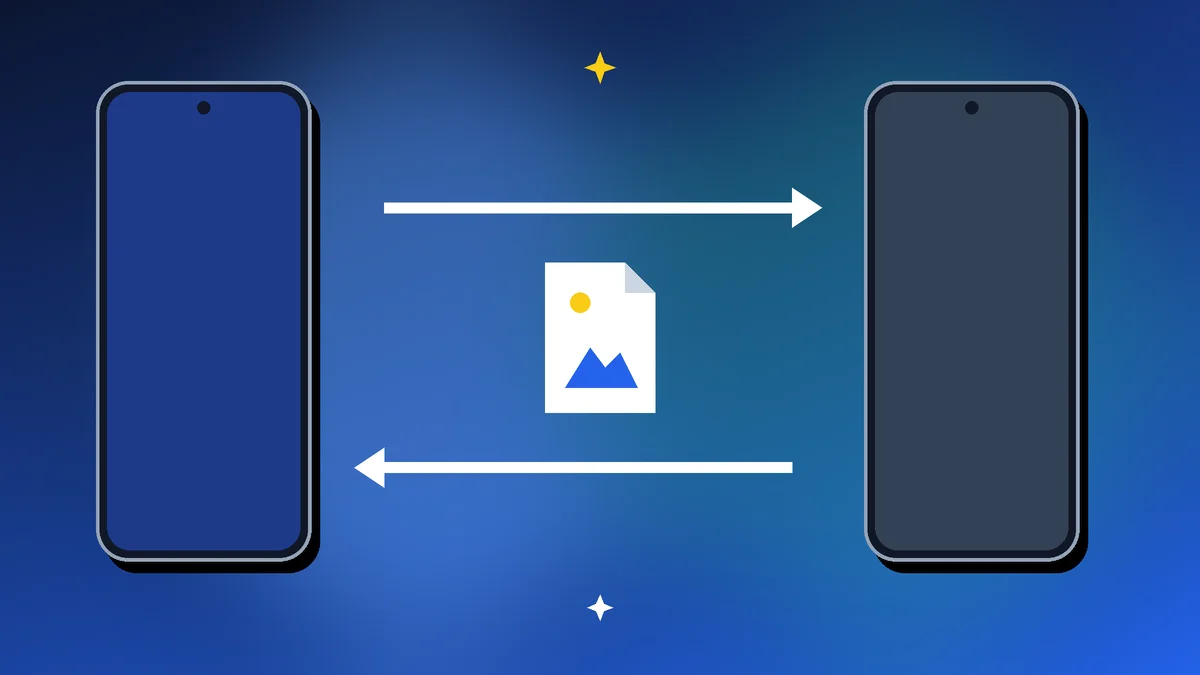
Sending photos between two iPhones is easy with AirDrop. Between two Android phones, Quick Share does the job. But mixed families and friend groups have long struggled to send files across the two.
That’s finally getting easier. Google’s Quick Share now works with Apple’s AirDrop on supported phones, and the Android 17 update brings this to more devices. Here’s how to share files between Android and iPhone, whichever phones you have.
Quick Take
The easiest ways to share files between Android and iPhone:
- Quick Share with AirDrop: on supported Android phones, send directly to nearby iPhones
- Quick Share QR code: works with any iPhone, and files stay available for 24 hours
- Cloud links: Google Drive, Google Photos or iCloud links for large albums
- Messaging apps: quick, but they can compress photos and videos
Checked on 4 October 2026 using Google’s Android Help and published Android 17 rollout details. Feature availability varies by phone model.
Table of Contents
Method 1: Quick Share With AirDrop (Supported Phones)
According to Google, Pixel 8a and later, plus certain Samsung and other Android phones, can share directly with Apple devices using Quick Share’s AirDrop support. Motorola also lists file sharing with iPhones via Quick Share among its Android 17 features.
Sending from Android to iPhone
- On the iPhone, open Settings → General → AirDrop and set it to Everyone for 10 Minutes.
- On the Android phone, select the photo or file and tap Share → Quick Share.
- Choose the iPhone from the nearby devices list.
- Accept the file on the iPhone.
Sending from iPhone to Android
- On the Android phone, open Quick Share settings and set who can share with you to Everyone for 10 minutes.
- On the iPhone, tap Share → AirDrop and pick the Android phone.
- Accept the file on Android. It’s saved in the Files app’s Quick Share folder.
Both phones need Bluetooth and Wi-Fi turned on, and the screens unlocked and nearby.
Method 2: Quick Share QR Code (Works With Any iPhone)
If your Android phone doesn’t support direct sharing with AirDrop, Google offers a QR code option:
- Select the files and tap Share → Quick Share.
- Choose the option to share using a QR code.
- Scan the code with the iPhone’s camera and download the files.
Google says the files stay encrypted and available for download for 24 hours.
Method 3: Cloud Links for Large Files and Albums
- Google Photos: create a shared album or link; it works on iPhone through the app or a browser
- Google Drive: upload files and share a link
- iCloud (from iPhone): share an iCloud link to photos or files, which opens in any browser
Cloud links are the most reliable way to share files between Android and iPhone when you have trip albums, long videos and work files, and the other person doesn’t need to be nearby.
Short on space before downloading big albums? See how to free up storage on your phone.
Method 4: Messaging Apps
WhatsApp, Telegram and email are the simplest way to share files between Android and iPhone when you only have a few items. They’re convenient for a few photos, but apps may compress images and videos. For full quality, send them as documents or files, or use cloud links.
Which Method Should You Use?
| Situation | Best method |
|---|---|
| Both phones nearby, Android supports AirDrop sharing | Quick Share with AirDrop |
| Nearby, older Android phone | Quick Share QR code |
| Large albums or long videos | Google Photos or Drive link |
| Person is far away | Cloud link or messaging app |
| A few quick photos | Messaging app (send as file for full quality) |
Privacy Tips When Sharing Files
- Set AirDrop and Quick Share back to Contacts only or Your devices after sharing
- Never accept files from unknown people in public places
- Turn off location data on photos you share publicly
- Remove shared cloud links when no longer needed
More tips in our guide to protecting your online privacy.
Aadyanix Verdict: Easiest Way to Share Files Between Android and iPhone
If your Android phone supports Quick Share with AirDrop, that’s now the fastest way to share files between Android and iPhone. If not, the Quick Share QR code or a Google Photos link works with any iPhone.
Check whether your phone is getting the Android 17 update, which brings iPhone sharing to more Android phones.
Share Files Between Android and iPhone: FAQs
Can Android use AirDrop?
Supported Android phones, including Pixel 8a and later and certain Samsung and other models, can share with Apple devices through Quick Share’s AirDrop support.
Do I need an app?
Not for Quick Share with AirDrop or the QR code method on supported phones. Cloud methods need the relevant app or a browser.
Why can’t my iPhone see my Android phone?
Check that AirDrop is set to Everyone for 10 Minutes, Bluetooth and Wi-Fi are on, and both screens are unlocked and close together.
Will photo quality be reduced?
Quick Share, AirDrop and cloud links keep the original quality. Messaging apps may compress unless you send photos as files.
How long do Quick Share QR code files stay available?
Google says files shared by QR code stay encrypted and available for 24 hours.